Process Instance View
 Process Instance View
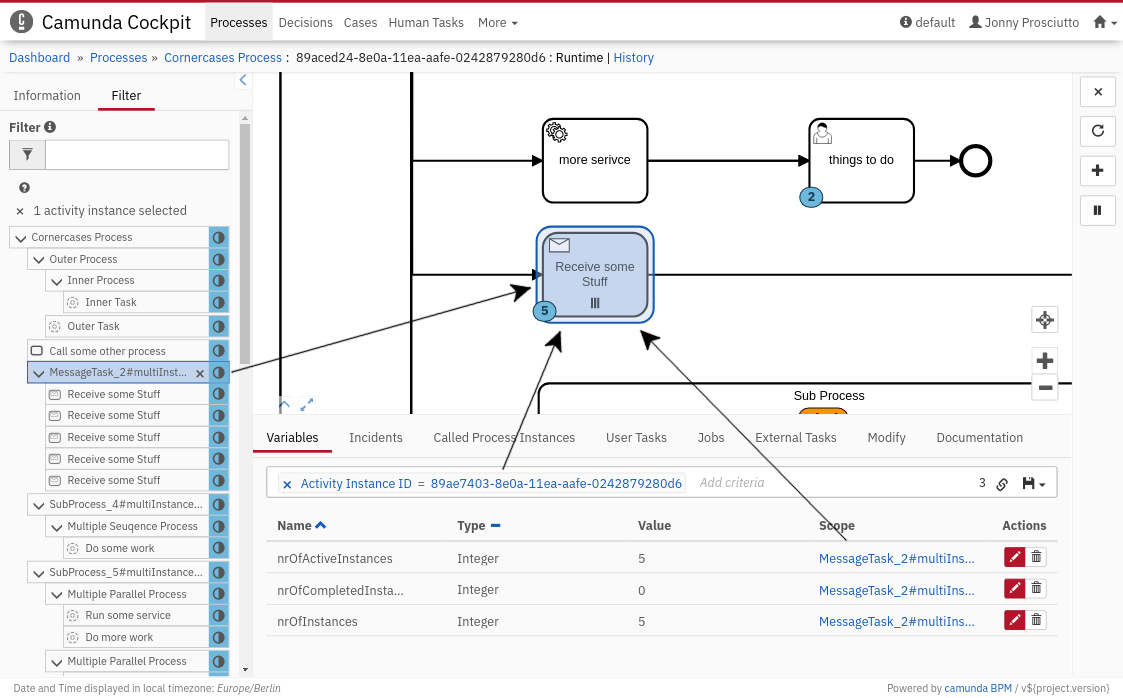
Open the process instance view by selecting a process instance from the process definition view instance list. This view lets you drill down into a single process instance and explore its running activities, variables, tasks, jobs, and other details.
Besides the diagram view, the process is displayed as an activity instance tree view. Variables that belong to the instance are listed in a variables table of the detailed information panel. You can select one or more flow nodes (Ctrl + click) in the interactive BPMN 2.0 diagram, or you can select an activity instance within the activity tree view. Because the diagram, tree view, and variables table correspond with each other, the selected flow node is also selected in the tree and the associated variables are shown, and vice versa.
Furthermore, you can maximize the diagram view or the detailed information panel by clicking the button or the button at the bottom left of the diagram view.
Activity Instance Tree
 Activity Instance Tree
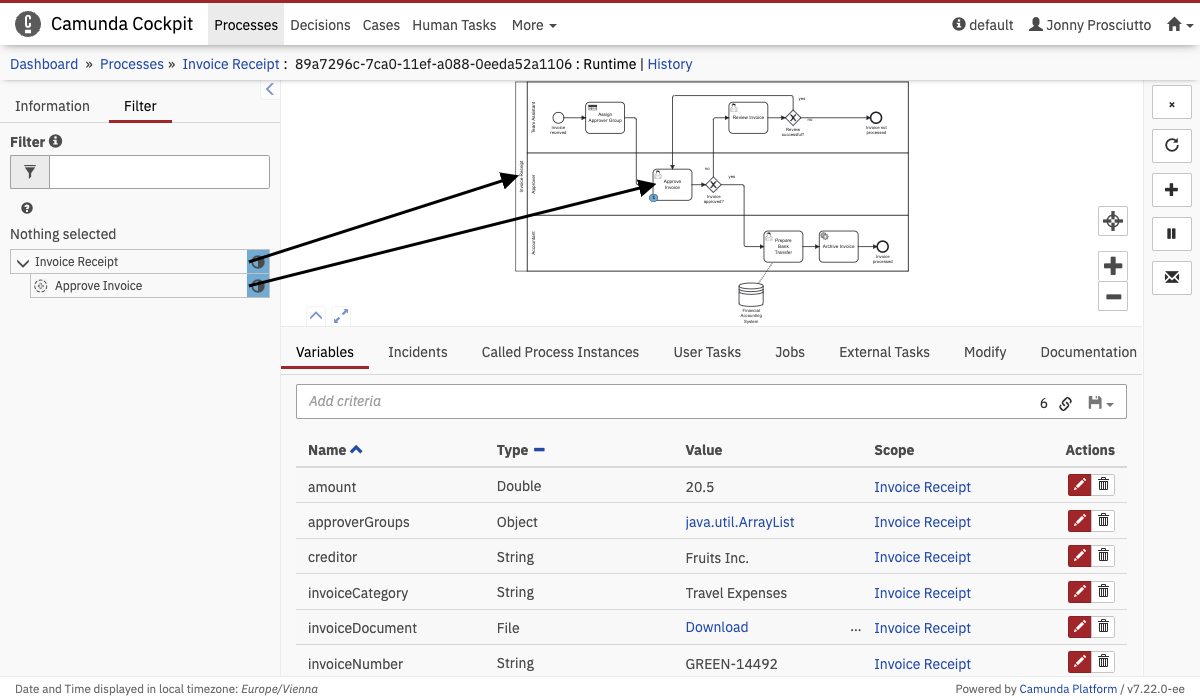
The activity instance tree contains a node for each activity that is currently active in the process instance. It lets you select activity instances to explore their details. At the same time, the selected instance is marked in the rendered process diagram and the corresponding variables are listed in the detailed information panel.
Call Activity Drill Down
 Call Activity Drill Down
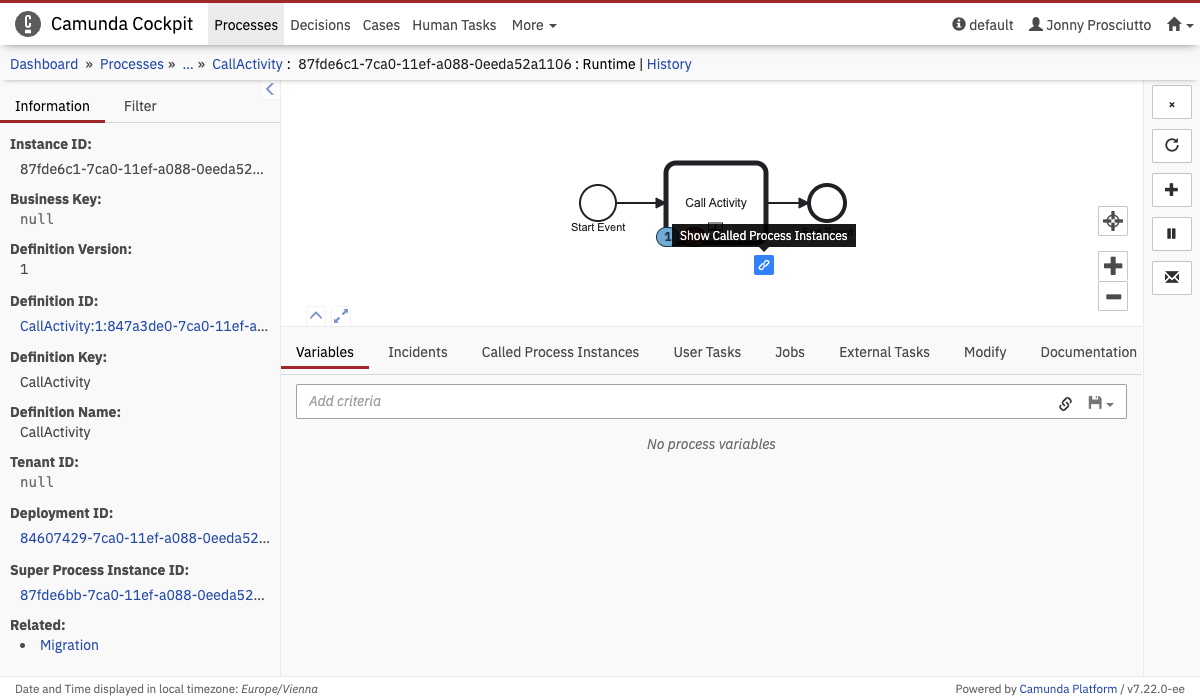
Call activity instances that call at least one process instance have an overlay on the upper right corner that links to their called process instances.
If the call activity instance calls exactly one process instance, then clicking the overlay redirects to the called process instance page.
However, if the number of called process instances exceeds one, clicking the overlay shows the called process instances tab containing only process instances called by the selected call activity instance.
Detailed Information Panel
 Detailed Information Panel
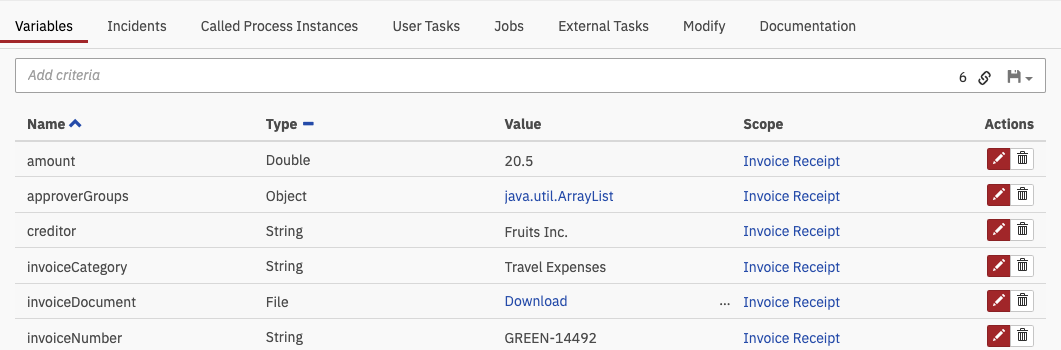
Use the detailed information panel to get an overview of the variables, incidents, called process instances, user tasks, and external tasks that the process instance contains. Furthermore, you can access the instance modification tab. Depending on the selected activity instance in the rendered diagram, the panel lists the corresponding information. You can also focus on the activity instance via a scope link in the table.
In addition to the instance information, you can edit variables or change the assignees of user tasks.
In the incidents tab, you can click the incident message name to open the stack trace of the selected incident. Furthermore, you can increment the number of retries for a failed job by clicking the repeat button.
The user tasks tab allows managing users and groups for selected user tasks. Click the user or group button to open the corresponding menu.
The jobs tab gives you an overview of all currently active jobs. If the job has a due date, you can edit the due date by clicking the time button. A dialog opens where you can choose to recalculate the due date based on the current time or its creation time. It is also possible to set a specific due date. Furthermore, you can suspend or activate a job by pressing the pause or play button.
The external tasks tab displays various information about external tasks, such as the external task ID, the activity, number of retries, worker ID of the external task, lock expiration time, topic name, and the set priority. See the external tasks section of the user guide for more information about external tasks.
Filter for Variables
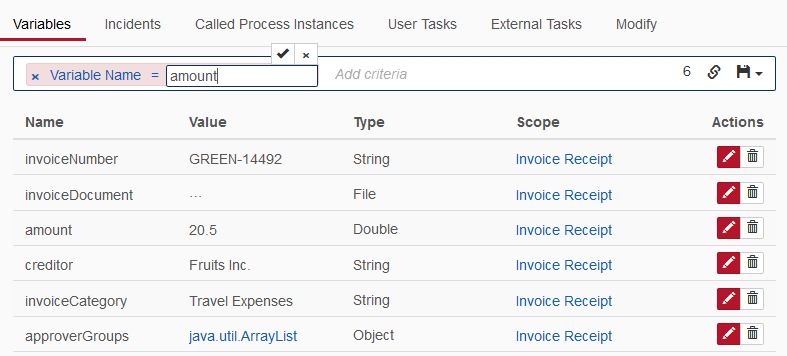 Filter Variables
In the variables tab, you can filter for variables by variable name, activity instance ID, and variable value by using search pills. You can filter variable values with the type String, Number, or Boolean. To do so, click in the empty search field and select a criterion. Next, fill in the corresponding values for the search pill. You can combine multiple search pills to narrow down the results. The total number of results that match the search query is displayed to the right. Furthermore, you can copy a link to the current search query to your clipboard by clicking the button and you can save search queries to your local browser storage by clicking the button and entering a name in the drop-down menu that appears. You can then retrieve the search query by clicking the button and selecting the chosen name in the drop-down menu.
Add Variables
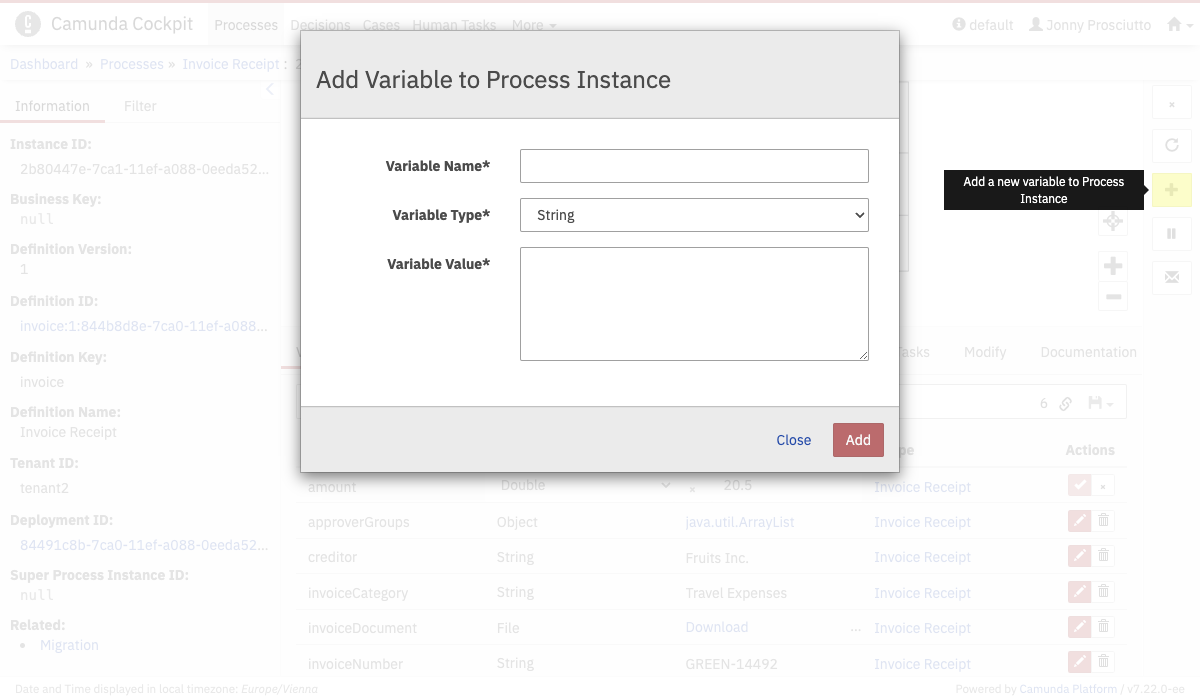 Add Variables
Click the plus button on the right side to add variables to a process instance. You can choose between different data types. Variables are overwritten if you add a new variable with an existing name.
Edit Variables
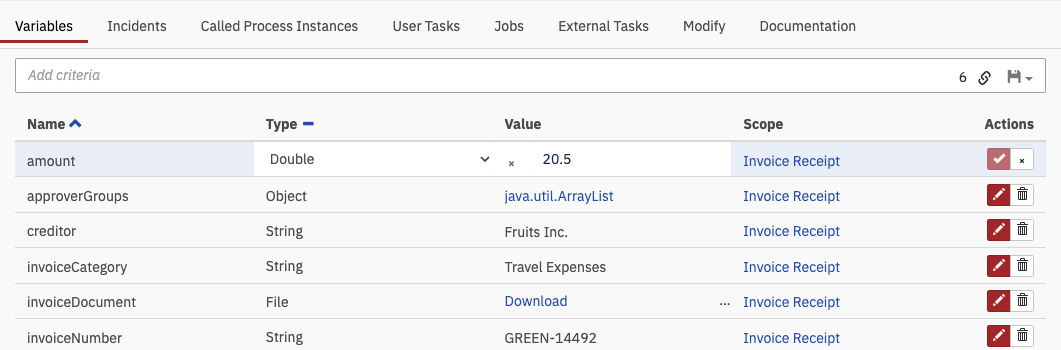 Edit Variables
Edit variables in the list of variables by using the pencil symbol. This feature lets you change the value and type of variables. Date format and integer values are validated on the client side. If you enter NULL, the variable is converted to a string type.
Cancel a Process Instance
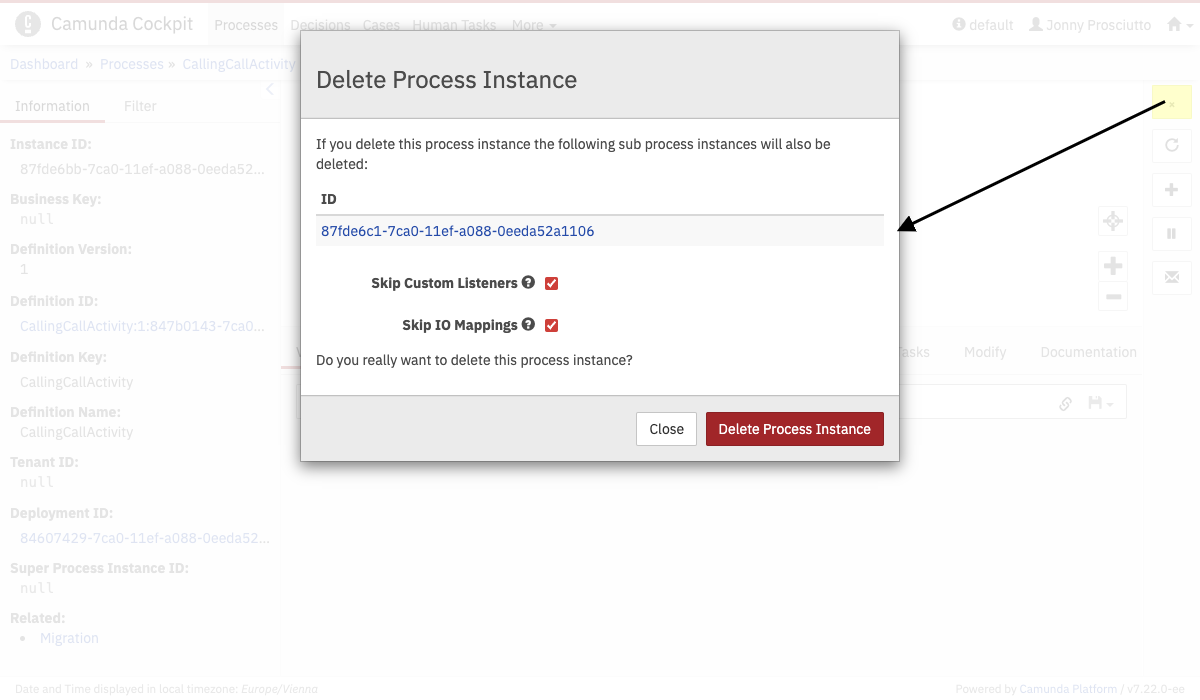 Cancel Instances
In the process instance view, you can cancel a single process instance. Click the remove button on the right side. In the dialog that appears, you can choose to skip custom listeners and I/O mappings. After you have completed this step, a confirmation dialog appears and the runtime data of the canceled instance is deleted.