Deployments
Deployment View
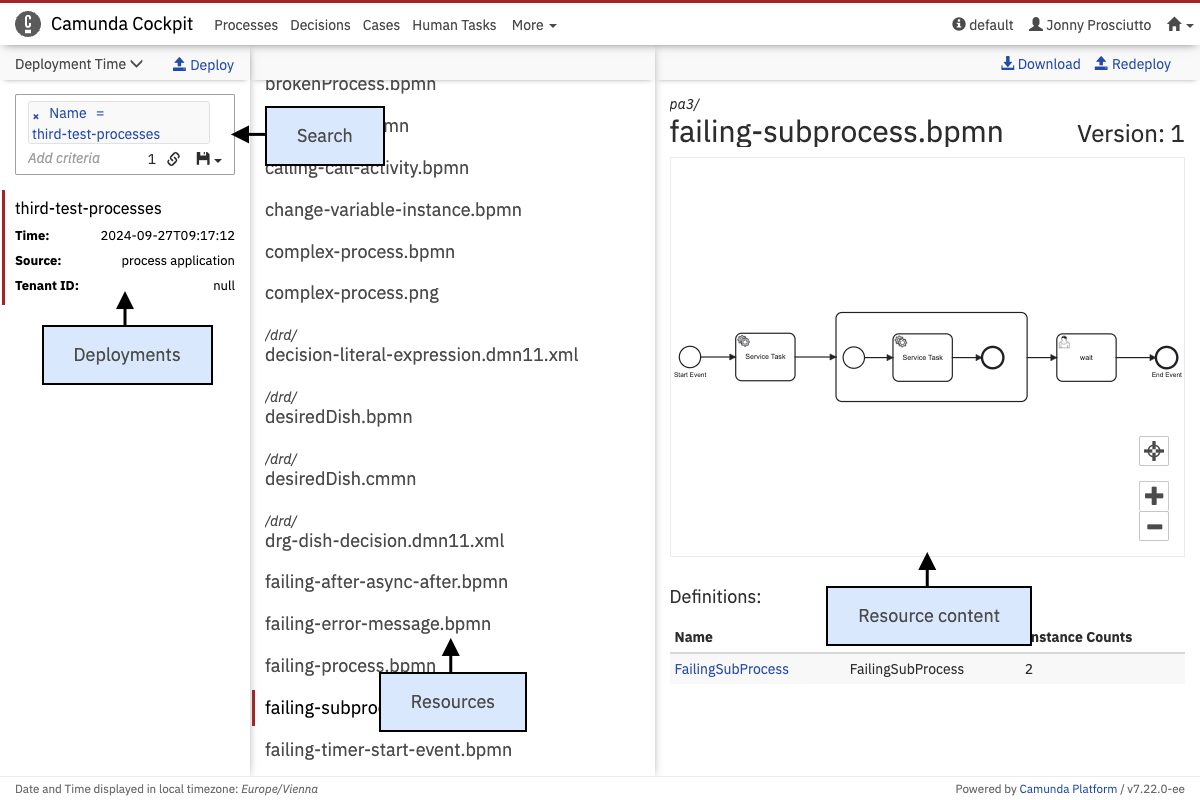 Cockpit Deployment View
The Cockpit deployment view shows an overview of all deployments, their resources, and the content of these resources. It lets you delete existing deployments, redeploy old resources, and create new deployments. The content of resources within deployments can be displayed. It is also possible to download individual resources from this view.
Search
Use the search field at the top of the list of deployments to find specific deployments. Similar to the search on the cockpit dashboard and in tasklist, it is possible to search deployments using an array of available criteria.
Valid search criteria are unique ID, name (which does not need to be unique across all deployments), time of deployment and source. The deployment source can be provided when a deployment is created. A deployment that is created by the application during startup will have this property set to process application. If a deployment is made directly in Cockpit, the property will be set to cockpit, and so on. You can also search for deployments that have no deployment source set using the Source undefined criterion.
Furthermore, you can copy a link to the current search query to your clipboard by clicking the button and you can save search queries to your local browser storage by clicking the button and entering a name in the drop-down menu that appears. You can then retrieve the search query by clicking the button and selecting the chosen name in the drop-down menu.
Independently of the search, ordering for the deployment list can be set using the sorting parameter above the search field. It is possible to order by ID, name, and deployment time. Clicking the arrow on the right side of the sorting criterion changes the ordering (ascending and descending).
Delete
To delete a deployment, hover over the deployment and click the deletion icon. In the dialog that appears, you can choose to cascade the deletion (i.e., also delete running and historic process instances) and skip custom listeners and I/O mappings. After you have completed this step, the deployment is deleted.
Redeploy
You can redeploy an existing deployment to increase the version of all definitions contained in the deployment and overwrite any changes that happened to the definition since the initial deployment. To do so, click the redeploy icon that appears when hovering over a deployment. All resources contained in this deployment will then be redeployed. For every contained process, case, or decision definition, a new version will be created. This new version will then be the latest version of all definitions with the same key.
You can also redeploy only a single resource within the deployment: navigate to the resource and click the Redeploy button to redeploy this single resource. This is only possible for resources that contain definitions.
Create Deployment
You can create a new deployment. To do so, click the deploy icon that appears when hovering over a list of deployments. The deploy dialog will open. Specify the name of the deployment and select files for this deployment by clicking the "choose files" button. Confirm the deployment with the "deploy" button. A confirmation notification with a link to the deployment details appears.
Definition Resources
For resources that contain definitions (BPMN, DMN and CMMN files), a preview of the diagram or the table is displayed on the right side of the page, together with the version number of the definitions contained in this resource. At the bottom of the page, there is a list of definitions with links to the corresponding definition pages.