Decision Definition View
 Decision Definition View
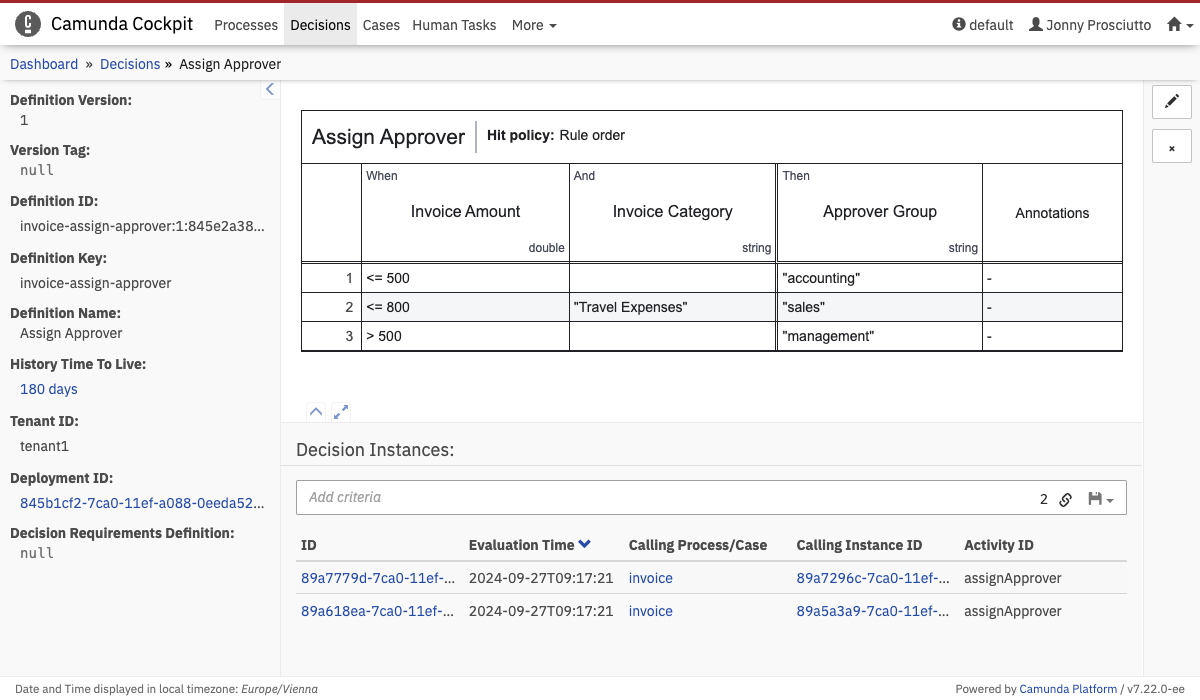
On the decision definition view, you can find a table or literal expression of the deployed decision definition. You can change the version of the decision definition in the drop-down menu on the left side. The table or literal expression is then updated accordingly. You can also navigate to the deployment of the selected version that contains the decision definition. Click the navigate to deployment button to go to the deployment view. You can maximize the table view or the detailed information panel by clicking the button or the button at the bottom left of the table view.
Below the decision table, you find a list of all instances for this definition. You can also search for decision instances that match certain search criteria. To do so, click in the search box and select the parameters to search for. You can also begin typing to find the required parameter faster. You have to specify the value of the selected property to perform the search and you can combine multiple search pills to narrow down the search results.
Furthermore, you can copy a link to the current search query to your clipboard by clicking the button and you can save search queries to your local browser storage by clicking the button and entering a name in the drop-down menu that appears. You can then retrieve the search query by clicking the button and selecting the chosen name in the drop-down menu.
If the decision instance was executed in the context of a process, you can also find the process definition as well as the process instance ID that executed that specific decision instance. Click the links to go to the corresponding pages. Click the ID of the decision instance to go to the decision instance view.