Dashboard
The Cockpit CMMN cases dashboard is the entry point for case monitoring. It comes with a pre-installed plugin that lets you see deployed case definitions. Additional plugins can be added to the cases dashboard.
Search
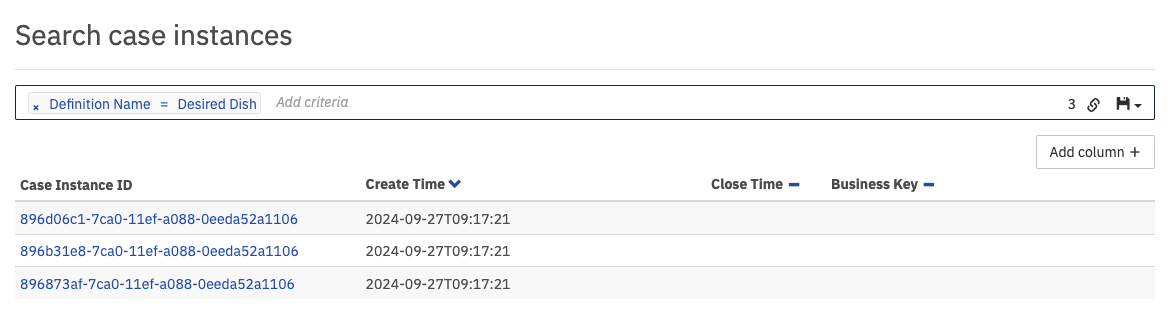 Case Instance Search
At the top of the dashboard, you can search for case instances that match certain search criteria. To do so, click in the search box and select the parameters to search for. You can also begin typing to find the required parameter faster. Depending on the selected property, you have to specify the value of the property. Some properties also allow operators other than equals, e.g., like, which lets you search for case instances where the entered value is a substring of the property value. To search for case variables, you also have to enter the variable name you want to search for.
To search for a variable of type string, which has a numeric, boolean, or null value, you have to wrap the value in single quotes (e.g., '93288' or 'NULL').
To add additional columns to the details of the search results, click the 'Add column' button and select the desired details in the drop-down menu that appears.
Furthermore, you can copy a link to the current search query to your clipboard by clicking the button and you can save search queries to your local browser storage by clicking the button and entering a name in the drop-down menu that appears. You can then retrieve the search query by clicking the button and selecting the chosen name in the drop-down menu.
The case instance search operates on the history endpoint of the engine. In case the requested historic data is not persisted to the database, then the search does not deliver the desired results.
Deployed Cases
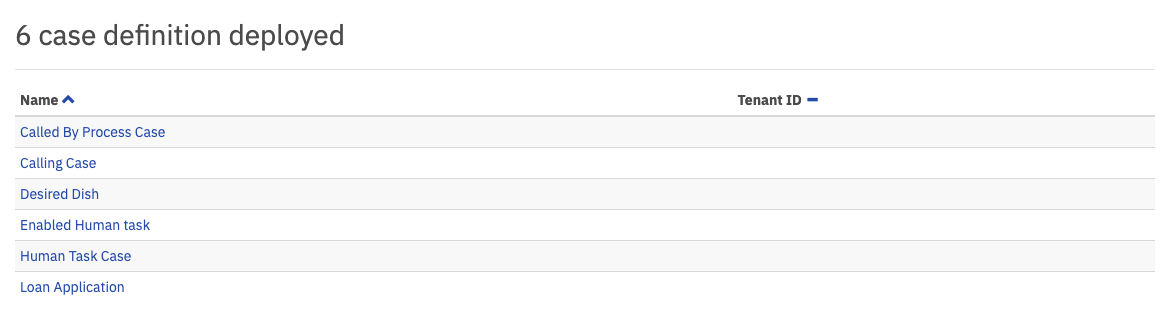 Deployed Case Definitions
This plugin provides a list of deployed case definitions. Click the name of a case to go to the case definition view and access more details, like the CMMN case or the executed case instance view.