Case Instance View
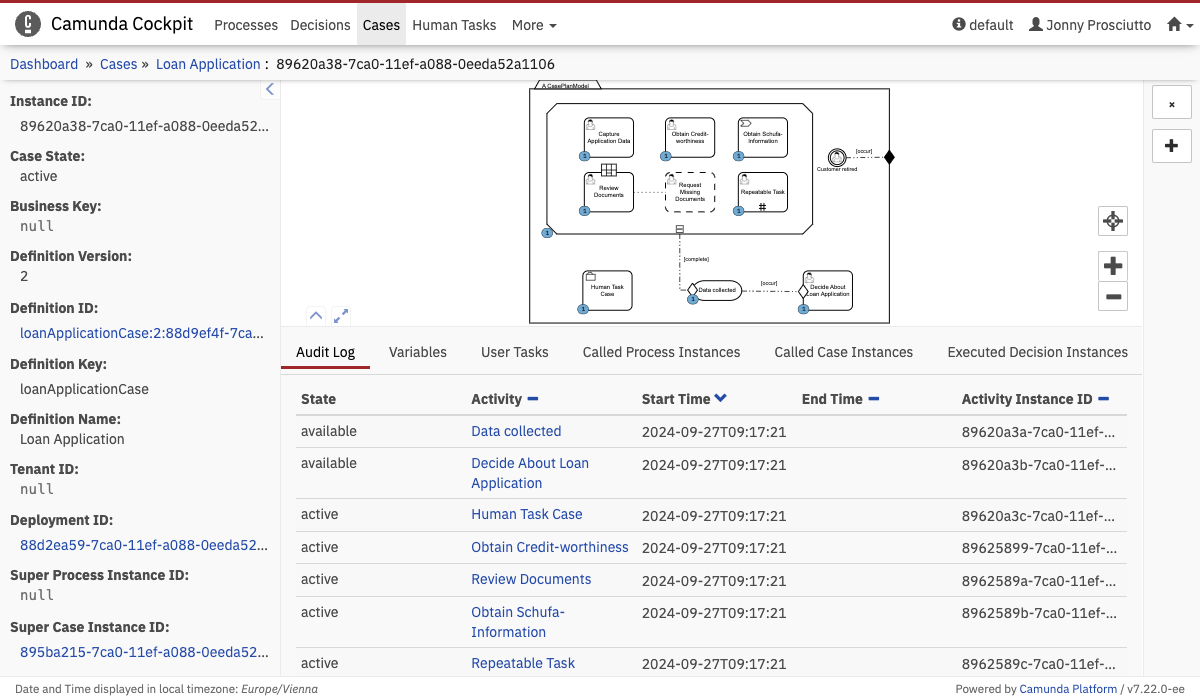 Case Instance View
Open the case instance view by selecting a case instance from the case definition view instance list. This view lets you drill down into a single case instance and explore its activities, variables, tasks, and other details.
Furthermore, you can maximize the diagram view or the detailed information panel by clicking the button or the button at the bottom left of the diagram view.
Detailed Information Panel
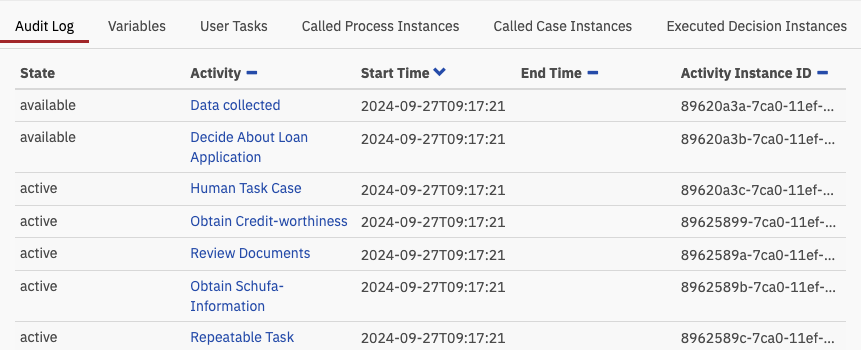 Detailed Information Panel
You can access various information regarding the specific instance by selecting the applicable tab at the bottom of the screen:
Audit Log
In the Audit Log, you find a detailed overview of the activities that took place within the case instance, including start time, end time, activity instance ID, and the current state.
Variables
In the Variables tab, you see an overview of the variables used within the case instance, including the name, last value, variable type, and scope. Additionally, you can edit variables.
User Tasks
In the User Tasks tab, you find an overview of all the user tasks related to this case instance and the details of the specific user tasks, such as the activity, the assignee, owner, creation date, completion date, duration, due date, follow-up date, priority of the user task, and unique task ID.
Called Process Instances
In the Called Process Instances tab, you find an overview of all process instances called in this case instance. Click the ID of the process instance to go to the process instance view page of the corresponding instance. Click the process definition key to go to the process definition page of the definition for the corresponding process instance.
Called Case Instances
In the Called Case Instances tab, you find an overview of all case instances called in this case instance. Click the ID of the case instance to go to the case instance view page of the corresponding instance. Click the case definition key to go to the case definition page of the definition for the corresponding case instance.
Executed Decision Instances
In the Executed Decision Instances tab, you find an overview of all decision instances evaluated in this case instance. Click the ID of the decision instance to go to the decision instance view page of the corresponding instance. Click the decision definition key to go to the decision definition page of the definition for the corresponding decision instance.
Add Variables
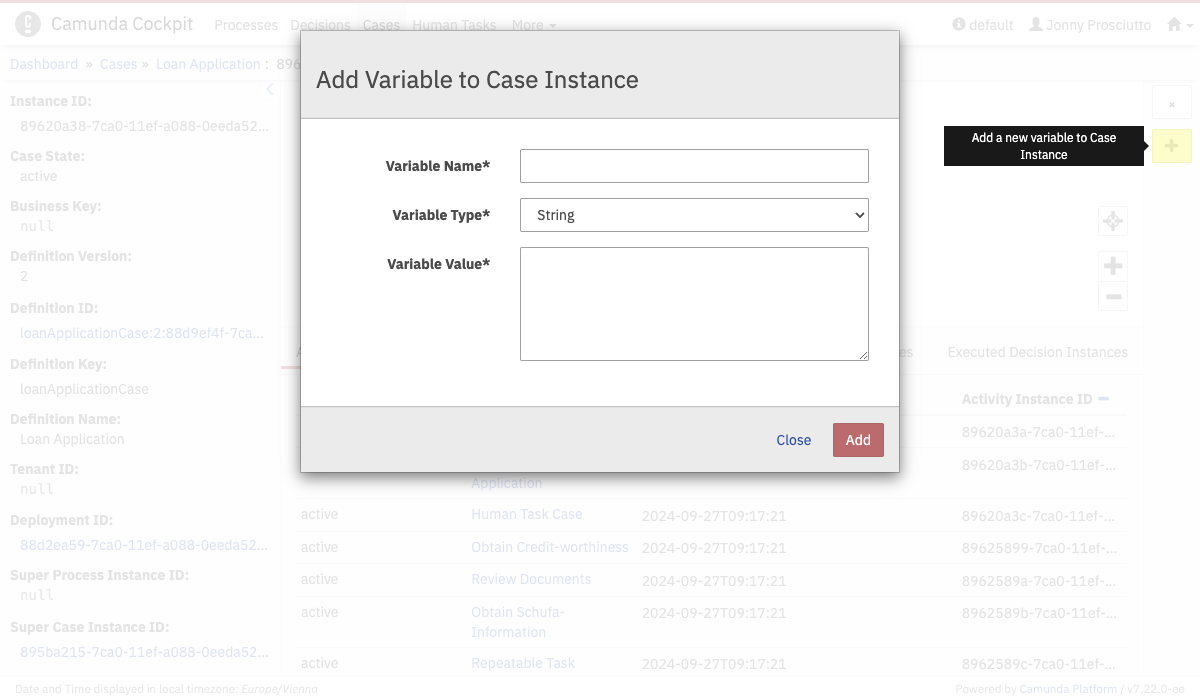 Add Variables
Click the plus button on the right side to add variables to a case instance. You can choose between different data types. Variables are overwritten if you add a new variable with an existing name.
Edit Variables
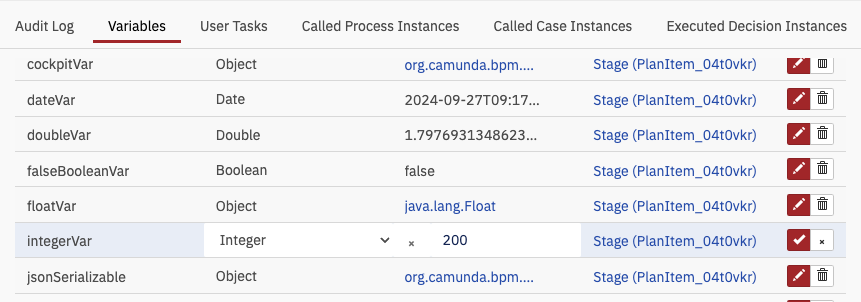 Edit Variables
Edit variables in the list of variables by using the pencil symbol. This feature lets you change the value and type of variables. Date format and integer values are validated on the client side. If you enter NULL, the variable is converted to a string type.
Terminate a Case Instance
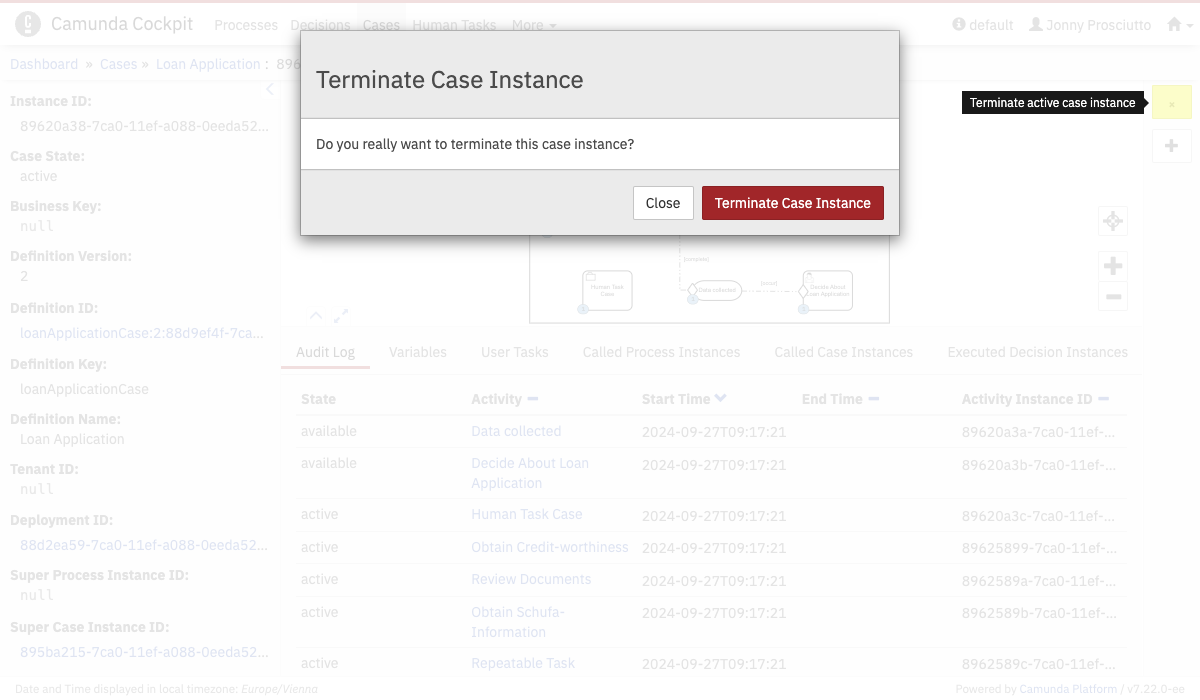 Terminate Case Instance
In the case instance view, you can terminate a single case instance. Click the remove button on the right side.